
Workspaces & Configuration
A workspace is the unit that owns calls, users, goals and QA rules. Get its configuration right and every number downstream means what you think it means.
What a workspace is
A workspace holds:
- its own calls — uploads and connected-source scans target one workspace;
- its own users — people are invited to specific workspaces;
- its own goals — duration, calls per day, talk ratio, emotion mix, score weightage;
- its own QA rules — masking, transcription language, dead-air threshold, processing limits;
- its own saved charts in Analytics.
The top-bar switcher decides which workspace the dashboard, analytics, performance and call screens are showing. Nothing crosses between workspaces, which is exactly why the boundaries are worth thinking about before you create the second one.
How to structure them
| Split by | When it’s right | Watch out for |
|---|---|---|
| Process or campaign | The usual answer. Collections, sales and support need genuinely different scoring and different targets. | Nothing — this is the split the goals and weightage system is designed for. |
| Client or brand | BPOs serving several clients, where reporting and access must stay separate. | Configuration is duplicated per workspace; set a template mentally before you create ten. |
| Language | Where a process runs in materially different languages and you want the transcription setting to match. | Splitting fragments an agent’s numbers if the same agent works both. |
| Team or shift | Rarely worth it. | You lose floor-wide comparison; the agent selector and filters already answer this. |
The workspaces list
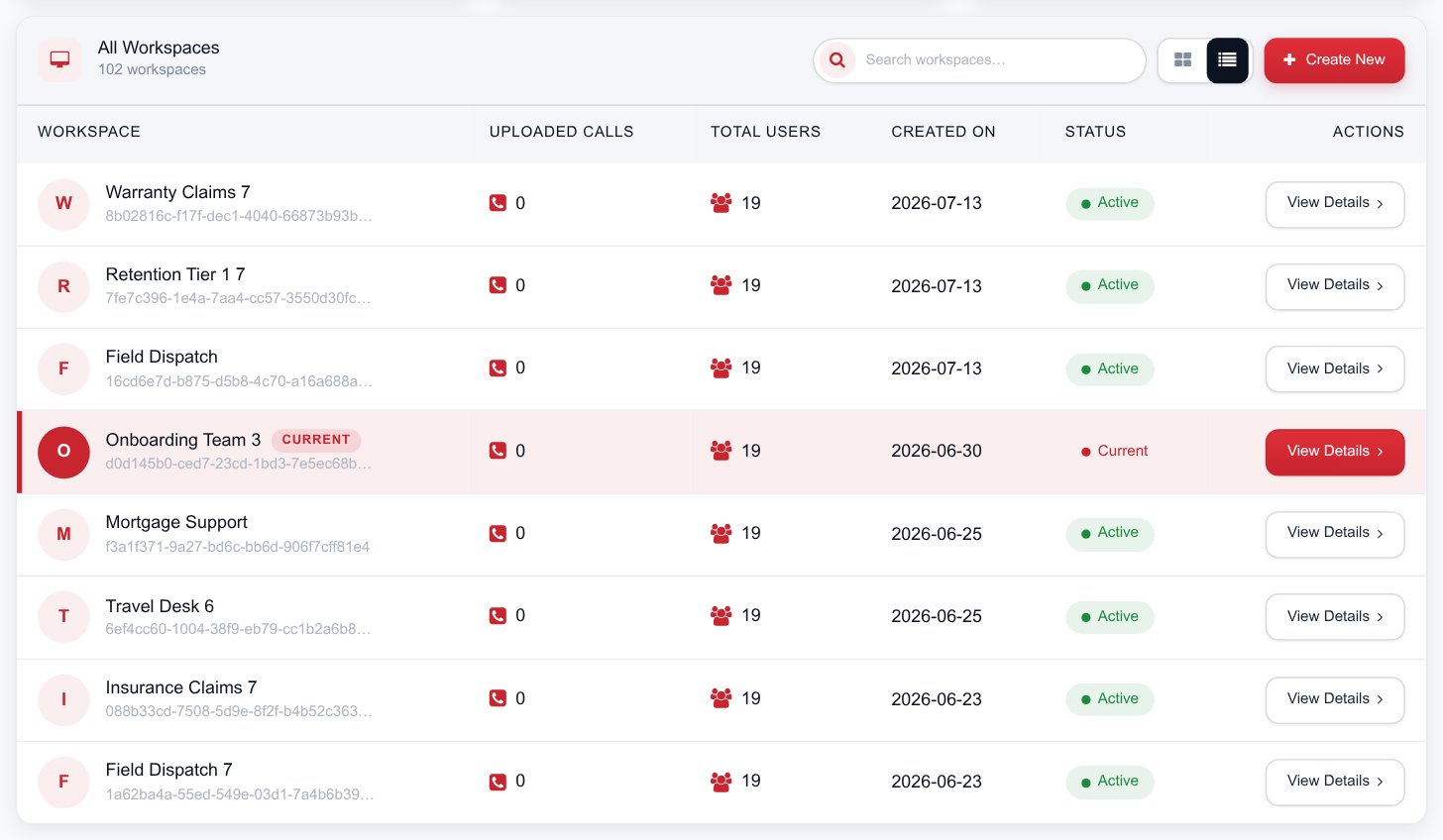
Sidebar › Manage › Workspaces lists every workspace with uploaded calls, total users, created date and status, in either grid or list view, with a search box for large accounts. Create New is top right; clicking any workspace opens its detail screen.

Creating a workspace
-
Name it
Use the process name your team already says out loud — "Collections – Bucket 2" beats "WS2".
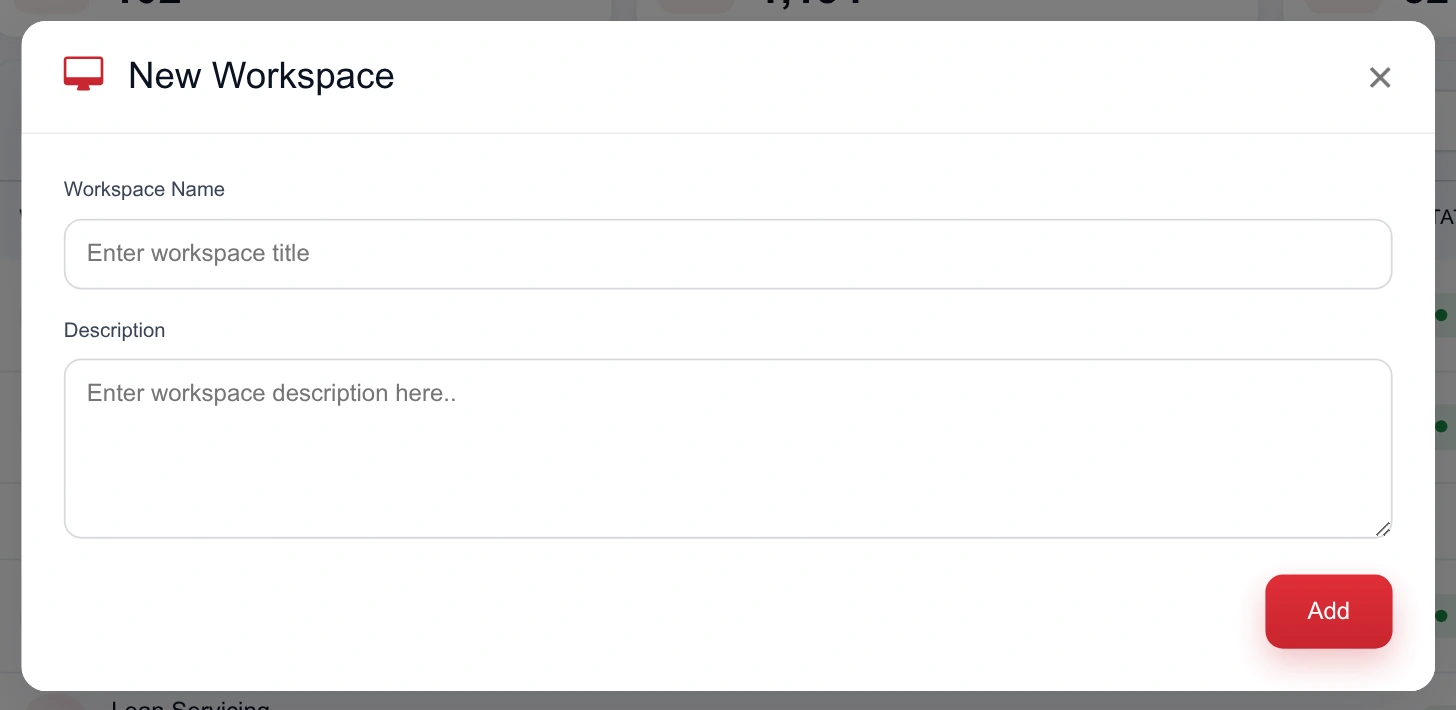
The dialog takes a name and a description. Everything else — goals, masking, language and dead air — is set on the workspace once it exists. - Describe it One line on what the process is, for whoever inherits it.
- Create, then configure Open the new workspace and set goals, masking, language and dead air before you point calls at it.
The workspace screen
The detail screen has a summary rail on the left and the editable sections on the right.
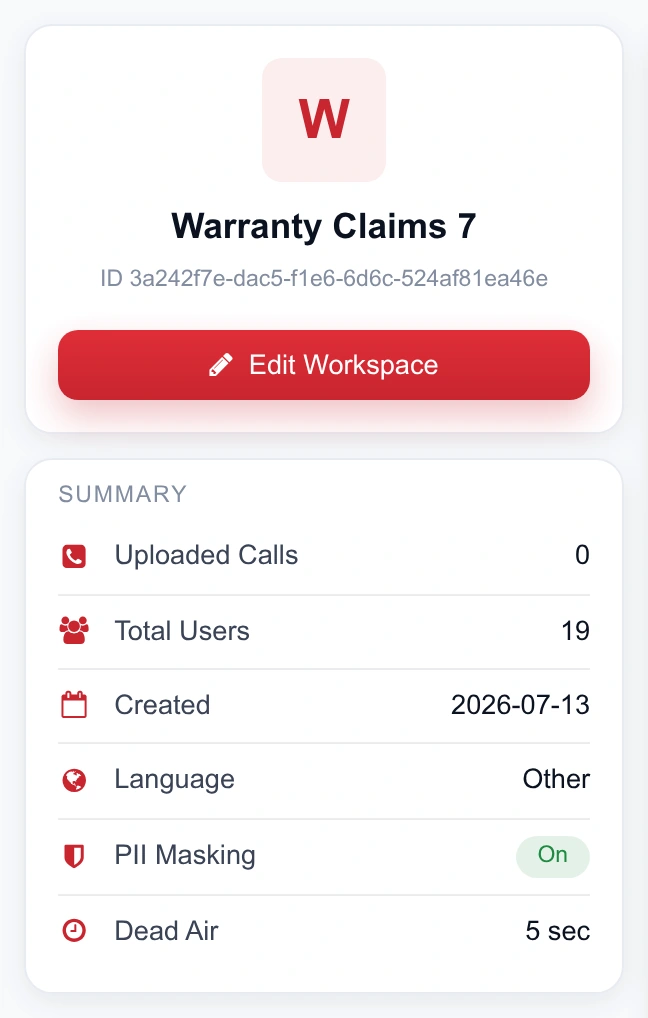
- Identity Name, a Current Workspace tag if it's the one you're switched to, the workspace ID, and Edit Workspace for name and description.
- Summary Uploaded calls, total users, created date, language, PII masking state and the dead-air threshold — the fast configuration check.
- Users Assigned · Goals / Targets · Configuration The three editable sections, each with its own edit control.
Goals & targets
This section is what turns raw metrics into judgements. Everything here feeds the dashboard KPI rings, the benchmark strips on the charts, the duration warning on the call list, and the goal column in the agent league table.
| Setting | What it drives | Guidance |
|---|---|---|
| Emotion targets happy · sad · neutral · fear · disgust · surprise | The benchmark comparison on emotion charts, per call and in aggregate. | Set as percentages of the mix. Start from your own last month rather than an ideal. |
| Call Opening / Handling / Closing weightage | How the three stage scores combine into the overall call score. | Weight the stage your process actually lives or dies on — verification for collections, pitch handling for sales. |
| Overall Sentiment | The target sentiment for a good call — positive or negative. | Positive for almost every process. |
| Calls Per Day | The per-agent volume target behind the Goal column and the dashboard’s calls ring. | Use your real roster expectation; the league table multiplies it by the days in range. |
| Average Duration (minutes) | The duration KPI ring, and the red duration warning on individual calls. | Set it slightly above your median handling time so only genuine outliers turn red. |
| Percent Talk | The talk-ratio benchmark on the call screen. | Most processes sit healthy in the 40–60% band; check yours before committing. |
| Cross Talk | The interruption benchmark. | Lower is better. Keep the target tight — cross talk is a strong escalation predictor. |
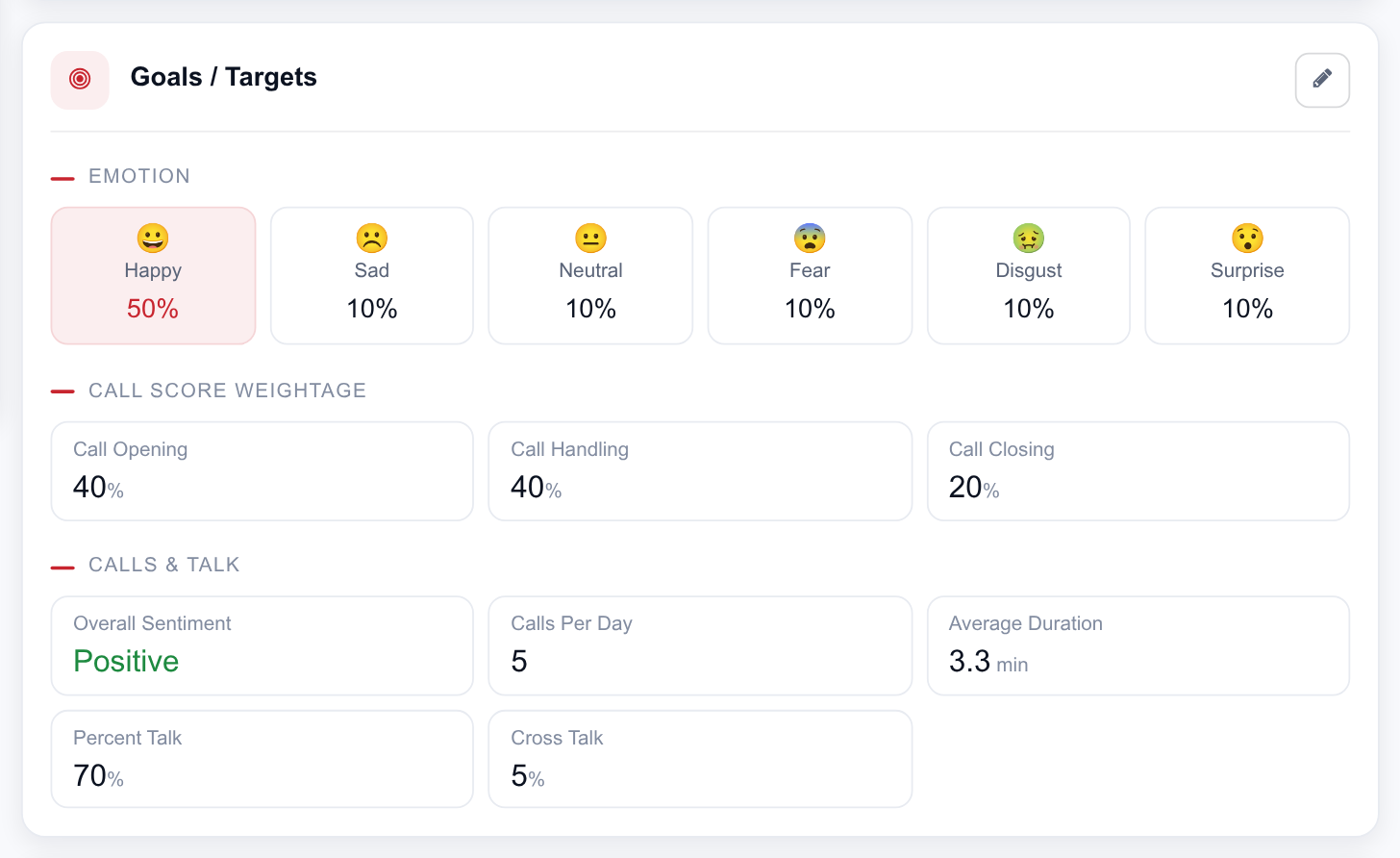
Opening / handling / closing weights change what every call score means. Adjusting them mid-quarter makes before-and-after comparisons misleading. Pick them once, then leave them alone for the review period.
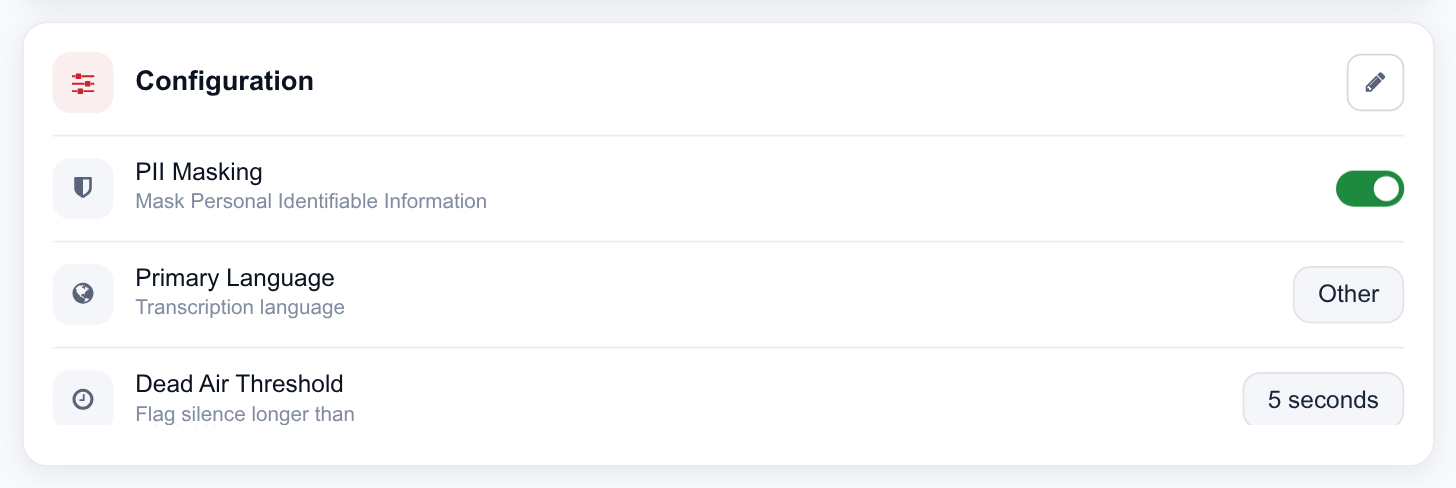
Configuration
| Setting | Options | Effect |
|---|---|---|
| PII Masking | On / Off | Redacts personally identifiable details — names, account numbers, ID numbers — from transcripts. See Security & Data handling. |
| Primary Language | English / Other | The transcription language for the workspace. Other covers non-English processes, including Hindi and code-switched Hinglish conversations. |
| Dead Air Threshold | 3–10 seconds | How long a silence must run before it counts as dead air in the silence metrics. |
A single Edit configuration control updates masking, language and dead air together, so a configuration review is one pass rather than three.
Processing limits
Limits control which calls are worth spending minutes on:
- Minimum Call Duration (minutes) — skips calls too short to contain a real conversation, such as dropped and misdialled calls.
- Maximum Call Duration (minutes) — skips outliers, typically recordings left running.
- Percentage of calls to process — samples a share of each agent’s calls rather than all of them.
Sampling saves minutes but reintroduces the blind spot that full-coverage QA exists to remove — risk does not conveniently appear in the sampled share. Use it to control a pilot's cost, not as a steady state.
Users assigned
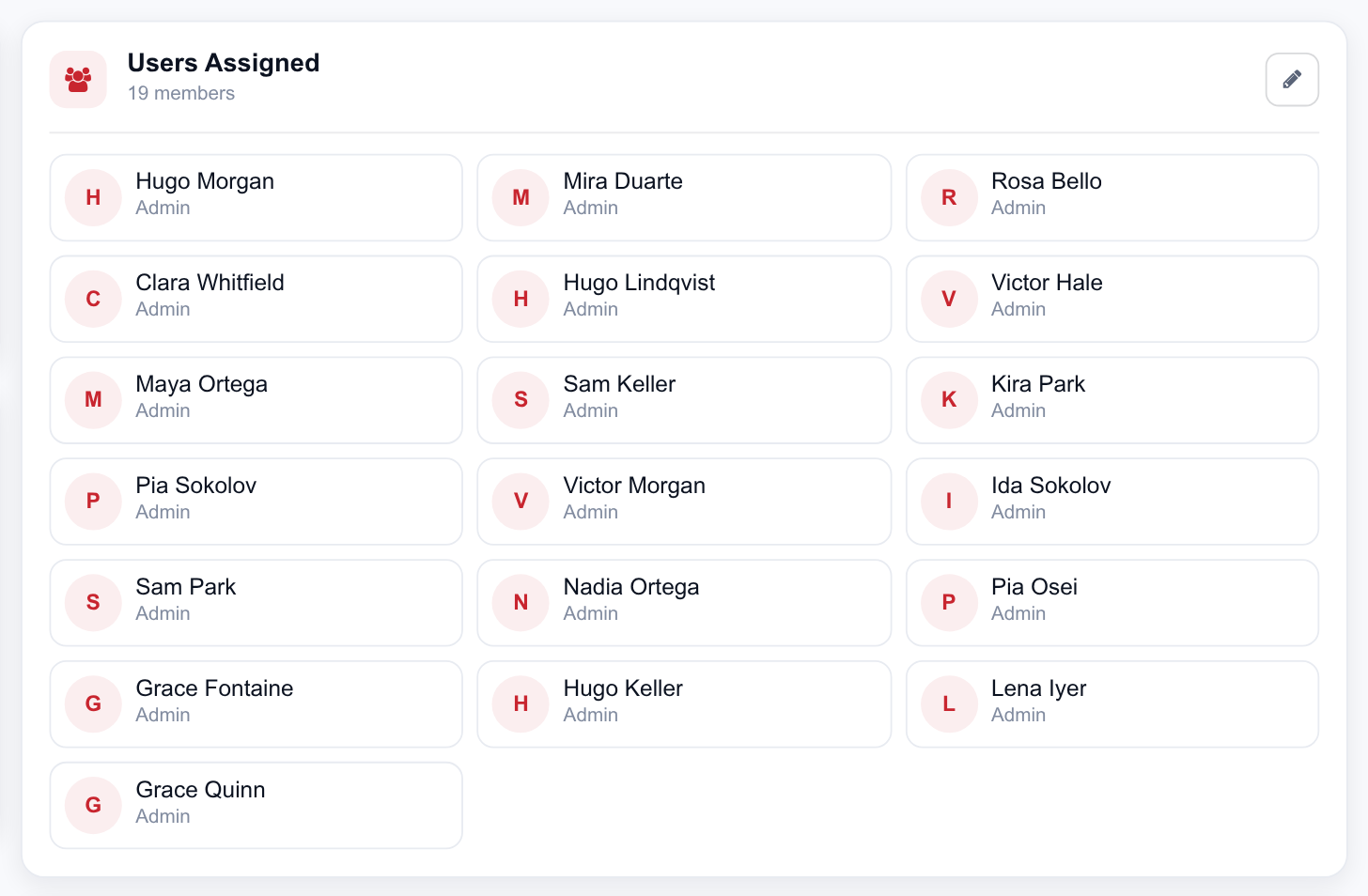
The Users Assigned card lists everyone who can see this workspace, and its edit control adds or removes them. Adding a user here grants access to this workspace only; creating the account itself happens under All Users. Admins reach every workspace regardless.
When changes take effect
- Goals, targets and weightage apply to how scores are presented and compared, so dashboards and league tables reflect them straight away.
- Language, masking, dead air, keywords and limits apply to calls processed after the change. Calls already processed keep the settings that were in force when they ran.
- If you change configuration to fix a systemic problem, re-ingest a sample batch afterwards to confirm the new behaviour before you trust the trend.