
Users, Roles & Access
Who can see which calls, which workspaces and which screens — and how to set that up without ending up with everyone as an admin.
The access model
Three things decide what a person can do:
- Their role Admin, user or agent. This sets the shape of what they can reach at all.
- Their workspaces Users see only the workspaces they were assigned; admins see all of them.
- Their permissions The account's permission set decides which screens and actions render. Anything a person can't use isn't shown, so sidebars differ from person to person.
Agents add a fourth dimension: an access level that decides whether they see their calls, their performance, both, or nothing.
The three roles
| Capability | Admin | User | Agent |
|---|---|---|---|
| Dashboard & call list | All workspaces | Assigned workspaces | Own calls only, with Calls Access |
| Call analysis screen | Yes | Yes | Own calls, no Comments tab |
| Comments & tagging | Yes | Yes | No |
| Analytics charts | Yes | Yes | No |
| Agents Performance | Whole floor | Whole floor | Own scorecard, with Performance Access |
| Upload calls | Yes | With upload permission | No |
| Workspaces & Configuration | Yes | View / edit where permitted | No |
| Invite users, manage agents | Yes | Only with the relevant permission | No |
| Integrations | Yes | Only with the relevant permission | No |
| Usage, plan & billing | Yes | Only with the relevant permission | No |
How gating shows up
Permission gating is quiet by design, which is worth knowing before you go hunting for a missing feature:
- Hidden, not disabled. Sidebar items, buttons and whole tabs are not rendered when the account lacks the permission — nothing is greyed out.
- Section headers disappear too. If every item under Manage is hidden, the heading goes with it.
- Account tabs adapt. The Account screen opens on the first tab the person can actually use, so nobody lands on a blank panel.
- Attempting a gated action — a permission-checked button such as Invite User — reports Access Denied rather than failing silently.
Nine times in ten this is permissions, not a bug. Compare the person's sidebar against an admin's, then check their role and workspace assignment under All Users.
Managing users
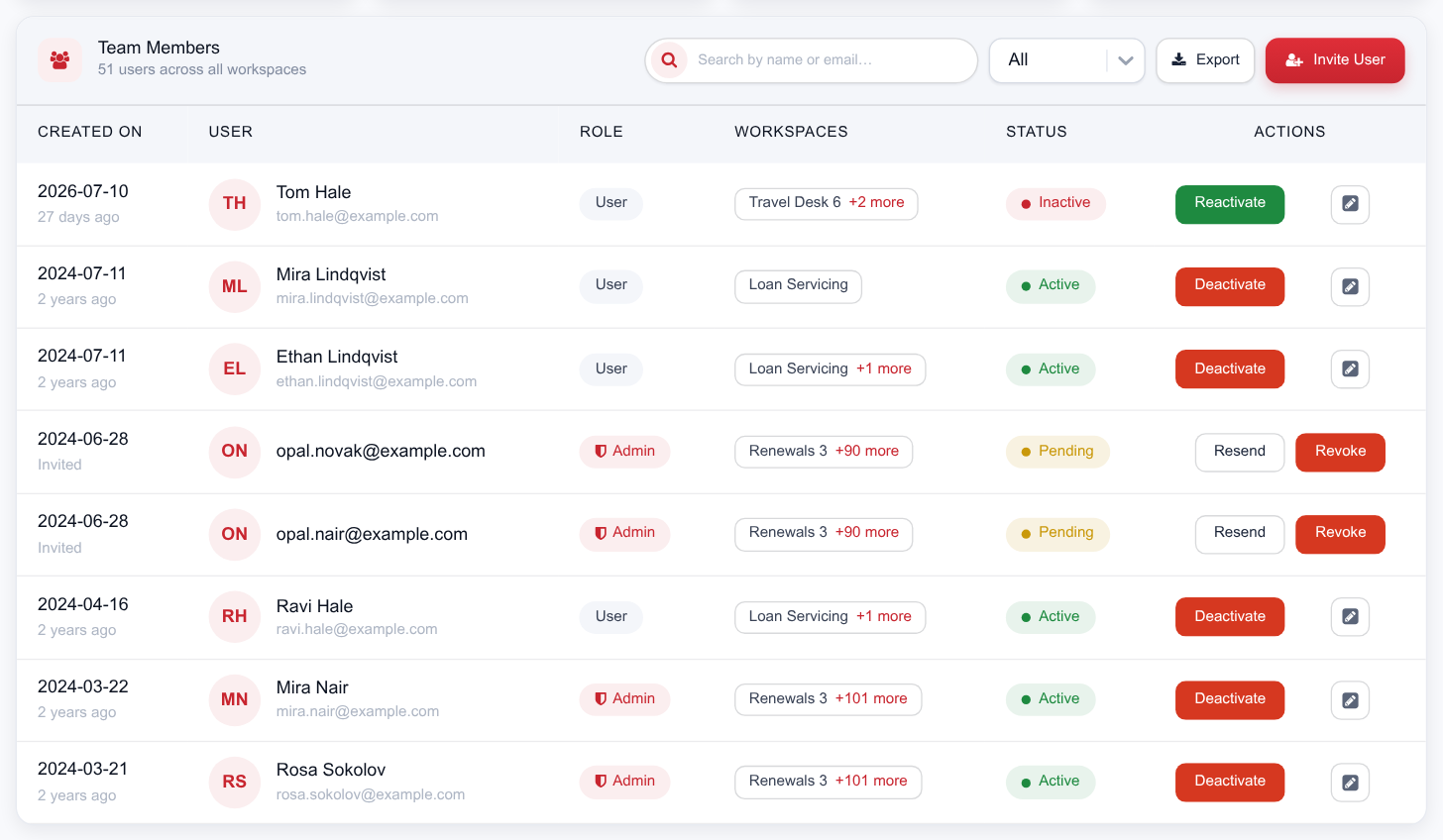
Sidebar › Manage › All Users lists everyone on the account:
| Column | Meaning |
|---|---|
| Created on | When the account or invite was created. |
| User | Name and email. |
| Role | Admin or user, badged. |
| Workspaces | Which workspaces they can reach. Admins reach all. |
| Status | Active, or Invited while an invite is outstanding. |
| Actions | Edit the user, and for pending invites, resend or revoke. |
The screen also carries an Invites view for outstanding invitations, and exports the list to a spreadsheet for access reviews.


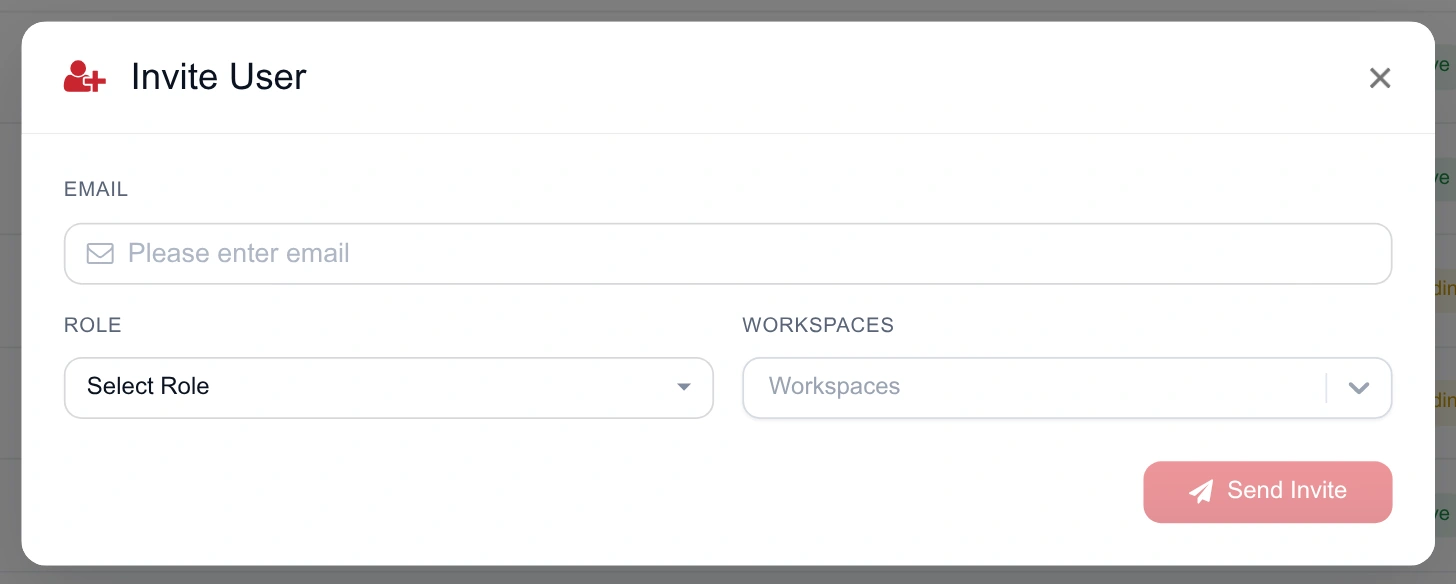
- Press Invite User Top right of All Users, or from the sidebar's invite action.
- Enter their work email This becomes their sign-in identity.
- Choose the role Admin for account owners and QA heads who need every workspace and the billing screens. User for everyone else.
- Select workspaces Only asked for the user role — admins get all workspaces implicitly. Pick as many as the person genuinely needs.
- Send They get a registration link and set their own password; nobody shares credentials.
Invite states
- Invited — the link has been sent and is waiting. The person doesn’t count as active yet.
- Resend invite — use when the mail was missed or the link expired; it issues a fresh one.
- Revoke invite — cancels an unaccepted invitation. Use it the moment a hire falls through.
- Invalid link — what the recipient sees on an expired or already-used link. Resend from here.
The agent roster
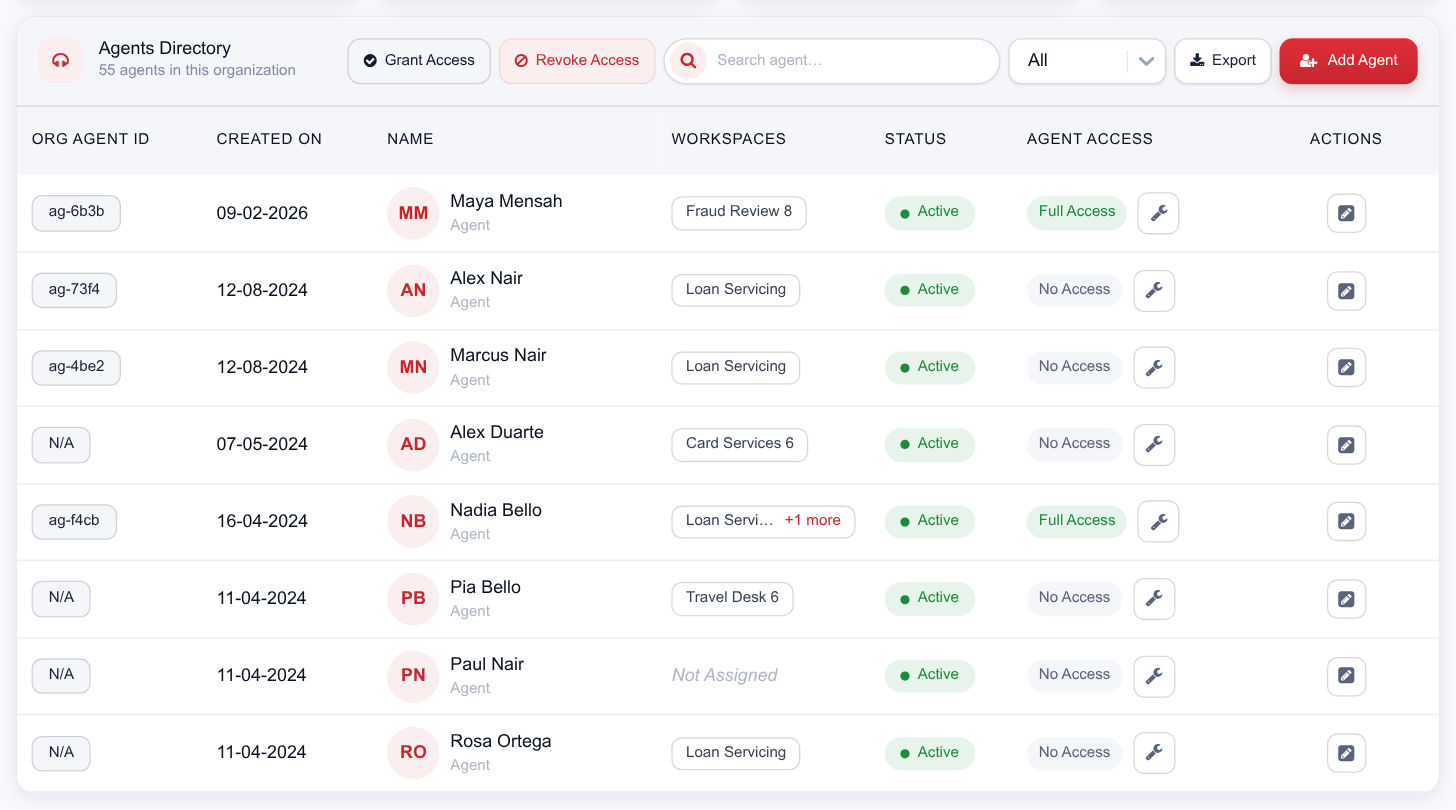
Agents are the people whose calls you audit; they are a separate roster from users, because most agents never sign in at all. Sidebar › Manage › All Agents holds them:
| Column | Meaning |
|---|---|
| Org Agent Id | Your own internal agent ID, if you supplied one — the join key back to your WFM or CRM. |
| Created on | When the agent was added. |
| Name | Agent name as it appears against calls. |
| Workspaces | Which workspaces the agent belongs to. |
| Status | Whether the agent record is active. |
| Agent Access | Their access level — see below. |
| Actions | Edit the agent, or change their access. |
Add Agent takes a name, email, optional Org Agent ID, the workspaces they work in, and two access switches. The roster exports to a spreadsheet, and a KPI on the screen shows how many agents currently have access granted.

Calls are attributed to agents by name. If your dialer writes "R. Sharma" and the roster says "Rahul Sharma", their calls won't group. Add agents before ingesting in bulk, and keep the spelling identical to what your recording system produces.
Agent access levels
Two switches — Calls Access and Performance Access — produce four states:
| Level | Switches | What the agent can see |
|---|---|---|
| No Access | Both off | Nothing. The agent has no sign-in of their own; their calls are still audited and still appear in your reporting. This is the default. |
| Calls Access | Calls on | Their own calls and their own call analysis — transcript, sentiment, emotions, score. No Comments tab, no other agents’ calls. |
| Performance Access | Performance on | Their own scorecard only. They land directly on Agents Performance instead of the dashboard. |
| Full Access | Both on | Their own calls and their own performance. |
Agents never see other agents, management screens, integrations or billing, whatever the level. Self-service access is a coaching accelerator when it’s used — an agent who can hear their own flagged moment usually fixes it without a session.
Granting access in bulk
The Agent Access Control action handles the roster at once, in Grant or Revoke mode, with separate pickers for calls access and performance access. The list only offers agents the action actually applies to — Grant excludes those who already have it, Revoke only shows those who do — so you can’t accidentally no-op half a batch. Use it when a new self-service policy rolls out, and at offboarding time.
Access practices that hold up
- Keep admins few. Admin means every workspace plus billing. Two or three is usually right.
- Assign workspaces narrowly. A supervisor who only runs collections doesn’t need the sales workspace, and narrow access makes their dashboard more useful, not less.
- Revoke at offboarding, don’t wait. Revoke the invite or the user, and revoke agent access in the same pass.
- Export and review quarterly. Both lists export; a fifteen-minute quarterly read catches the access nobody remembers granting.
- Never share logins. Comments, notifications and bookmarks are per person, and a shared login destroys the audit trail that makes QA defensible.