
Account, Usage & Billing
Your profile and password, what your plan includes, how many minutes you have left, and where every debit came from.
The Account screen
Sidebar › Account › Account — or your avatar in the top bar. A banner across the top shows your name, role, email, organisation and location, plus two quick stats: your plan and how many workspaces you can reach. Under it are four tabs, each gated by permission, so you may see fewer:
| Tab | Contains |
|---|---|
| Profile | Name and organisation details. |
| Security | Change password. |
| Plan & Billing | Current plan, amount and remaining duration. |
| Preferences | Webhook URL for your own systems. |
The screen opens on the first tab you’re allowed to use, so nobody lands on a blank panel.

Profile
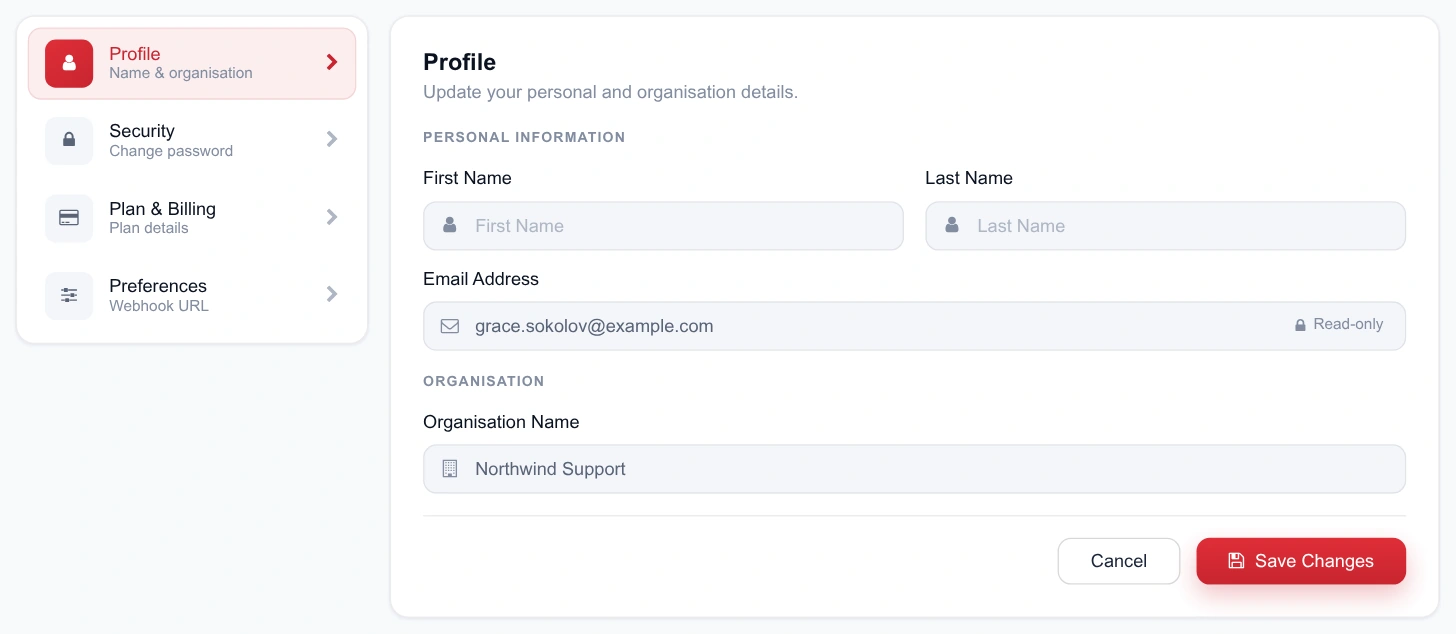
- First and last name — how you appear on comments and mentions, so keep it recognisable to your team.
- Email address — your sign-in identity.
- Organisation name — shown for organisation accounts; individual accounts skip it.
- Location details appear in the banner and are used on billing documents.
Security
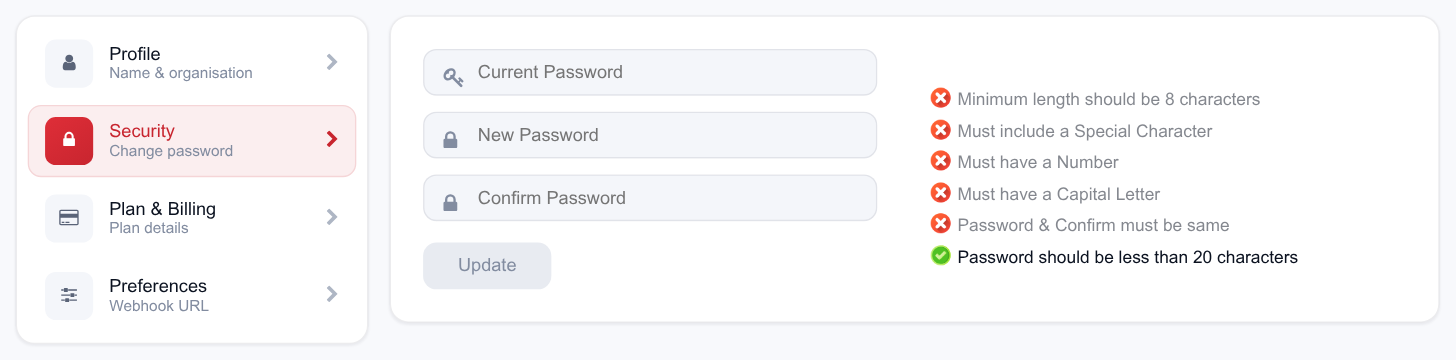
Change your password here — current password, then the new one twice, with strength rules checked as you type. Forgotten passwords are reset from the sign-in screen instead. Sessions are per browser; Logout at the bottom of the sidebar ends the current one.
Plan & Billing
| Field | Meaning |
|---|---|
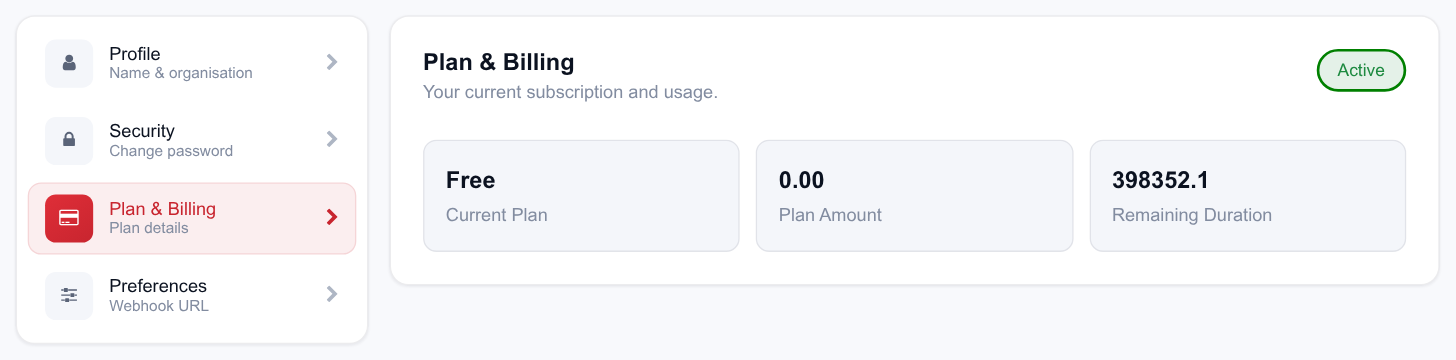
| Current Plan | The plan your account is on, with an Active status pill. |
| Plan Amount | What the plan costs. |
| Remaining Duration | Minutes left to process against the plan. |
Upgrade Plan starts the conversation with our team when your volume outgrows the current one. If minutes run low mid-month, it’s the remaining-duration number to watch — calls can’t process without minutes available.
Preferences
The one setting here is your webhook URL — where the platform posts processing events so your own systems can react. Enter the URL, press Test to confirm your endpoint answers, and save once the test passes. The save is deliberately gated on a successful test, which stops a typo from silently dropping every event. Full detail in API & webhooks.
Usage & Transactions
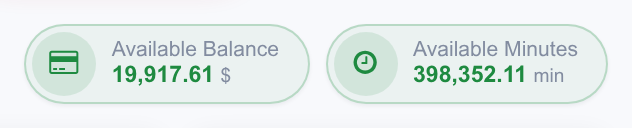
Sidebar › Account › Usage is the consumption view. At the top, two wallet cards:
- Available Balance — funds on the account.
- Available Minutes — processing minutes left.
Filter by workspace (or All Workspaces) and by date range, then Apply Filter. Download produces a printable copy of the view. Five status cards summarise processing across the range:
| Status | Meaning | What to do |
|---|---|---|
| Succeeded | Processed and available in the dashboard. | Nothing. |
| Running | Currently processing. | Wait; refresh the dashboard shortly. |
| Queued | Accepted, waiting for a processing slot. | Wait. A persistent queue on a big batch is normal. |
| Failed | Processing failed. | Open Failed Calls for the reason and re-run. |
| Total Calls | Everything ingested in the range. | Reconcile against what your storage sent. |

The daily ledger
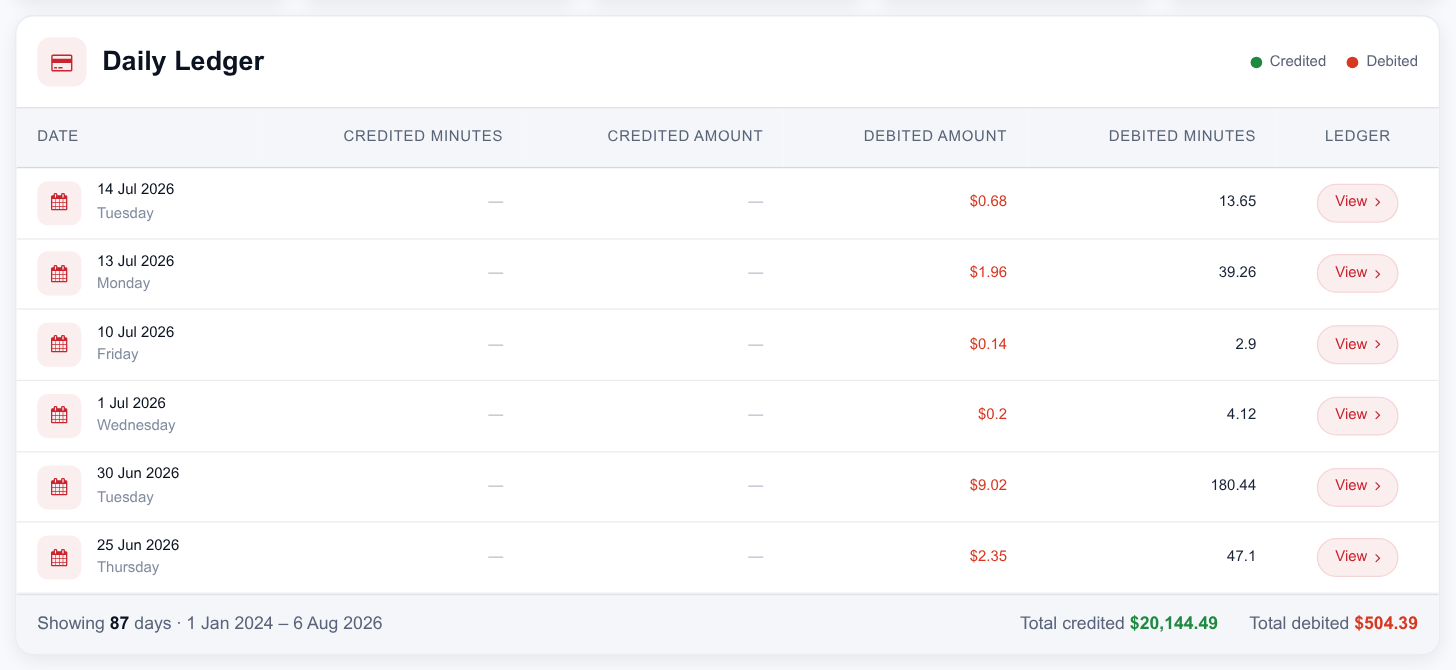
The table below the status cards is the account ledger, one row per day:
| Column | Meaning |
|---|---|
| Date | The ledger day. |
| Credited Minutes | Minutes added — top-ups and plan renewals. |
| Credited Amount | Value credited. |
| Debited Amount | Value consumed. |
| Debited Minutes | Minutes consumed by processing. |
| Ledger | Opens that day’s detail. |
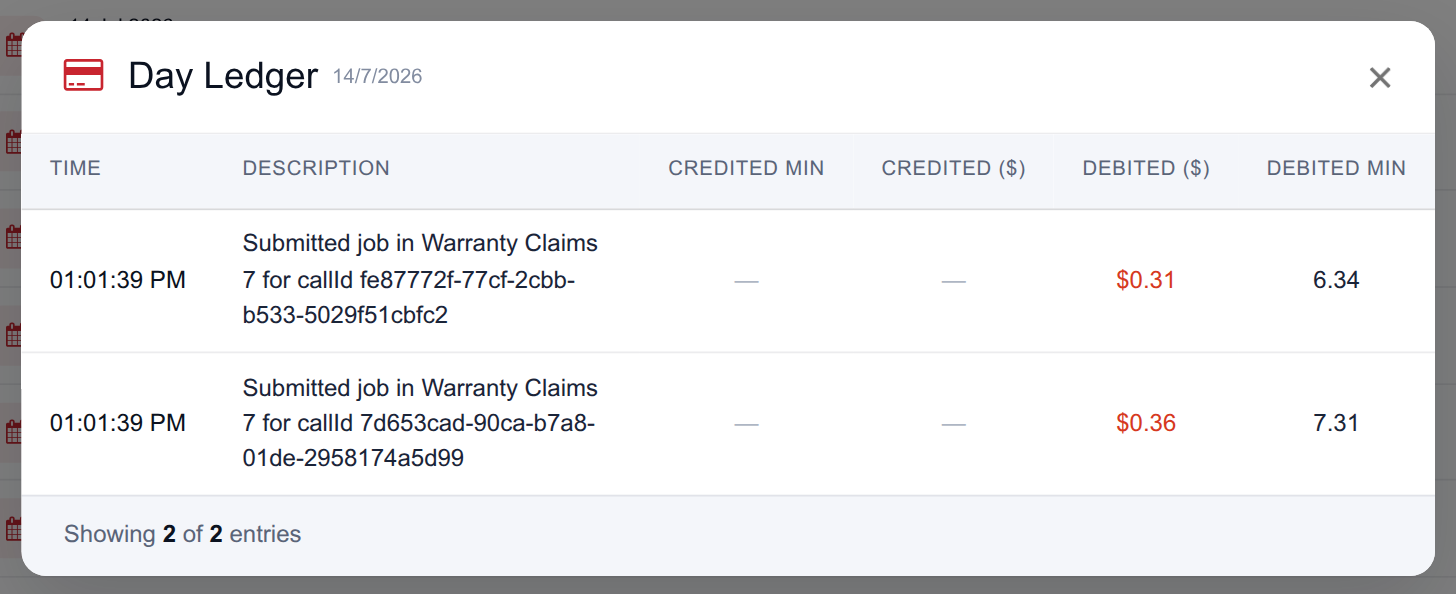
The day-level view breaks a single day into individual entries — time, description, and the credited and debited minutes and amounts. This is where you settle “why did we burn so many minutes on Tuesday”: usually a bulk backfill, a duplicated folder scan, or a processing limit that was left switched off.
Charging is prepaid: minutes are debited when a call is picked up for processing, so a call that fails shows both a debit and a matching credit in the day ledger. You pay for calls that made it through, not for attempts.
Invoices & Disputes
The invoices screen lists billing documents for a date range, defaulting to the recent period, and prints or saves as PDF for your finance team. If a line doesn’t look right, Raise Dispute sends our billing team a message attached to that invoice — always faster than a cold email, because the invoice context comes with it.
How minutes are consumed
- Minutes are audio duration. A ten-minute recording consumes about ten minutes of plan balance when it processes.
- Failed calls show under Failed rather than Succeeded; check the ledger against the status counts if a number surprises you.
- Re-running a failed call processes it again — worth knowing before you re-run a large batch.
- Processing limits protect the balance. Minimum and maximum call duration, and percentage of calls to process, are set per workspace and keep dropped calls and stuck recordings from eating minutes — see Processing limits.
- Watch the Queued count on backfills. A historical import can consume a month of minutes in an afternoon; check remaining duration before you point the platform at an archive.